ES
BellPass · Videos and screens

What the platform looks like for each person.

Parents, the office and security, each with their own screen. Watch the video for your role or tap any image to see it full size.

Sample namesStep-by-step videosReal screens from the appComputer and phone
Videos

Learn to use it, step by step

Pick who you are and the language. Watch them as many times as you like.

01 — Parents

Everything from their phone

They sign in with their email, no password, and request a dismissal in seconds. The school’s answer arrives on their phone.
Sign-in screen with an email address
Sign inThey type their email and get a secure link.
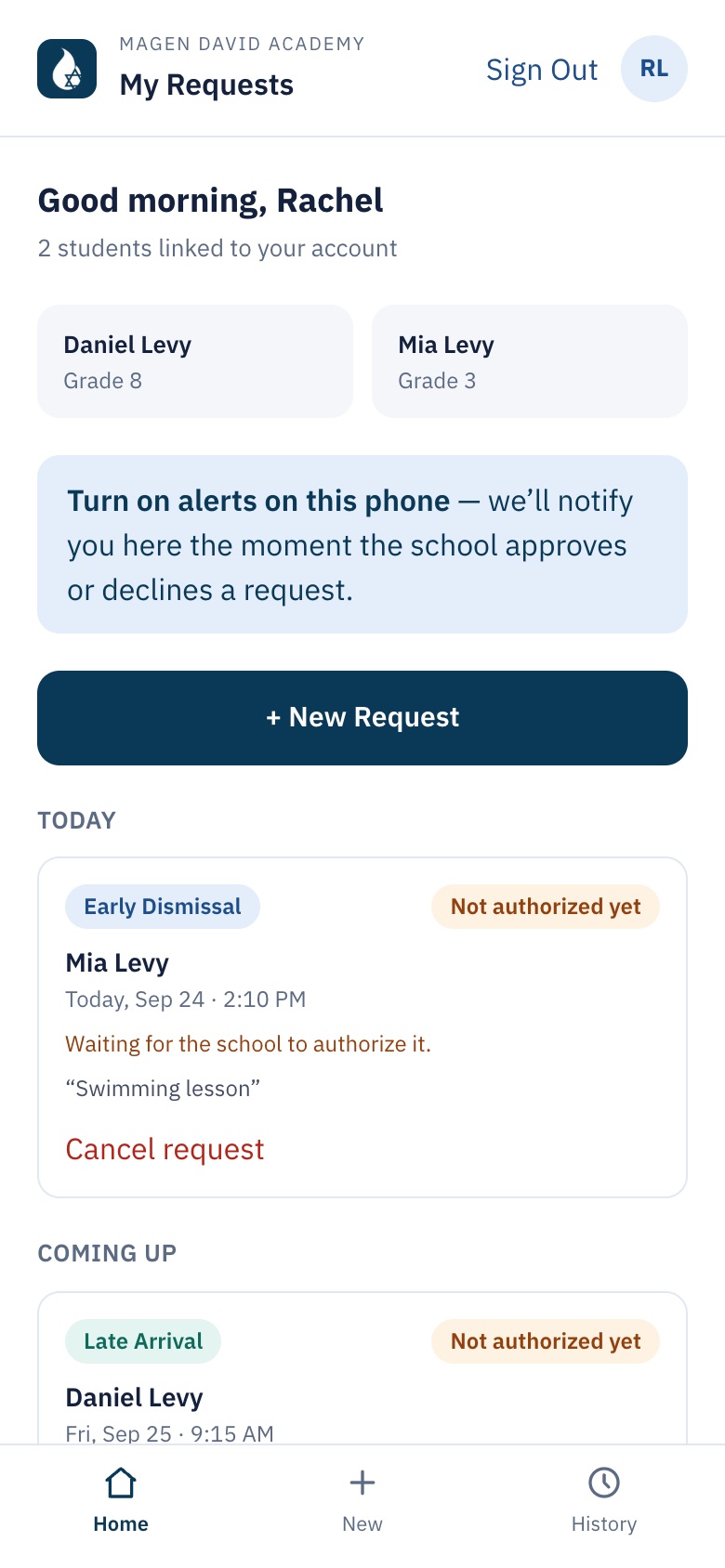
Parent home with their children and requests
HomeTheir children, today’s requests and what’s coming, each with its status.
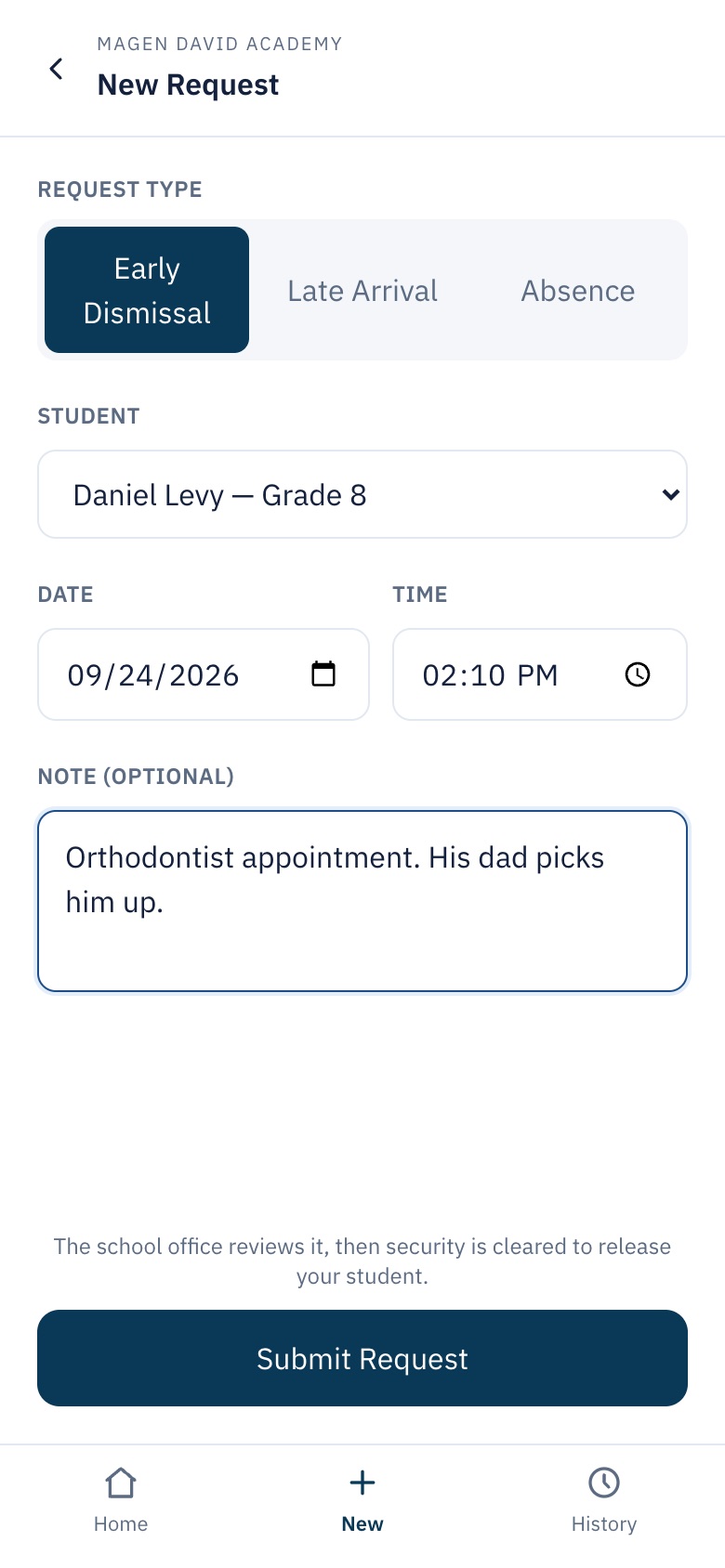
New request form
New requestEarly dismissal, late arrival or absence, with a note for security.
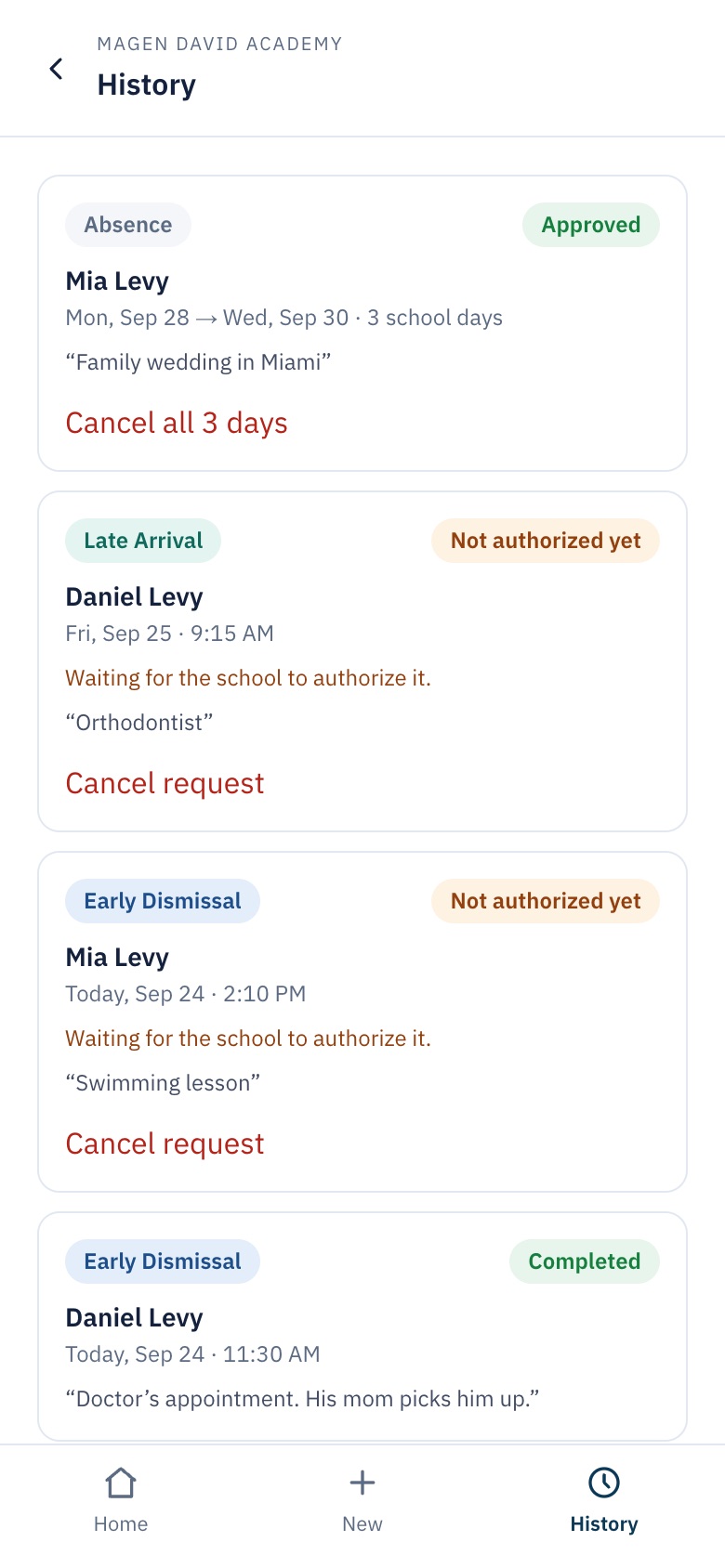
Parent request history
HistoryEverything they have requested, approved or declined.
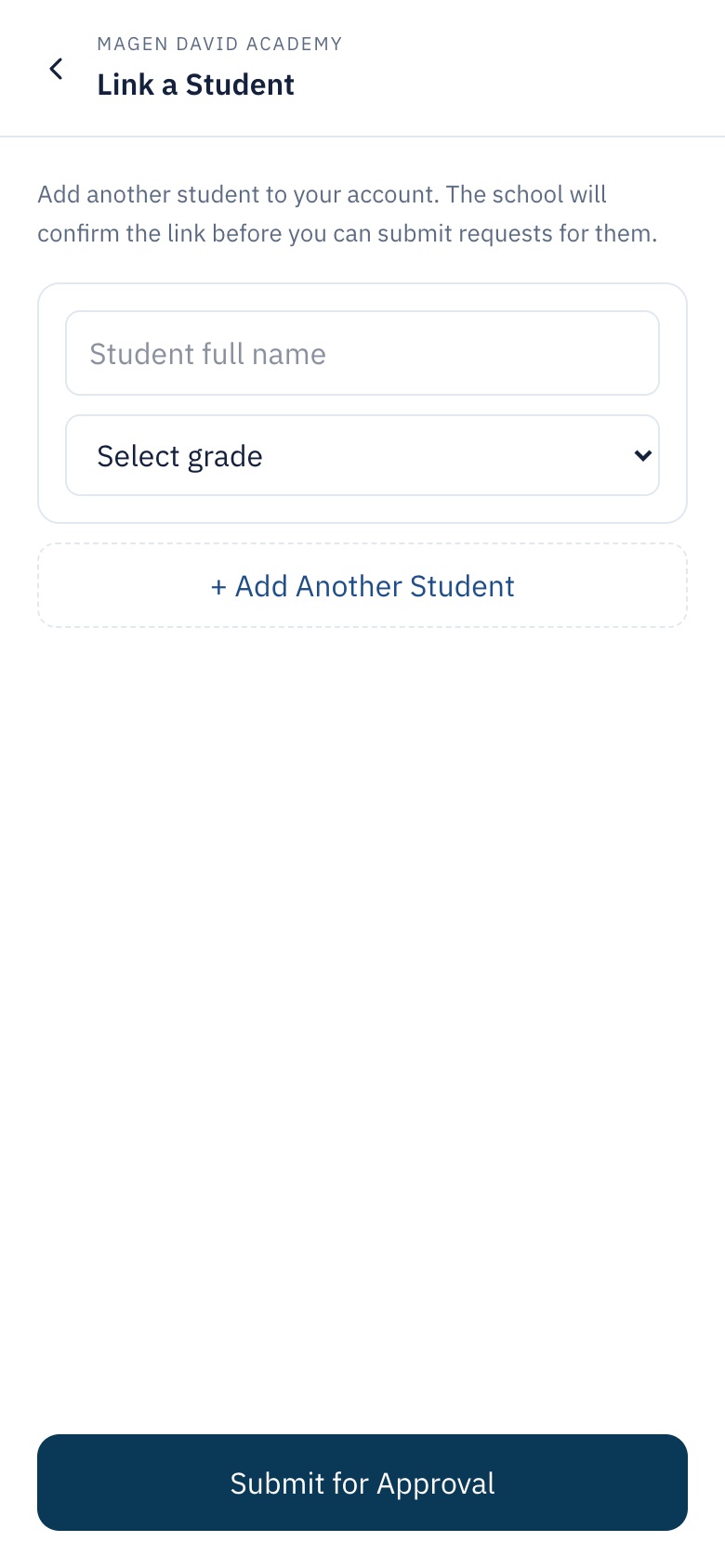
Form to link a student
Link a childThe office reviews it before giving access.
02 — Office

The office decides and keeps a record of everything

Approve or decline in one tap, review who signs up and see every student’s history.
mybellpass.com
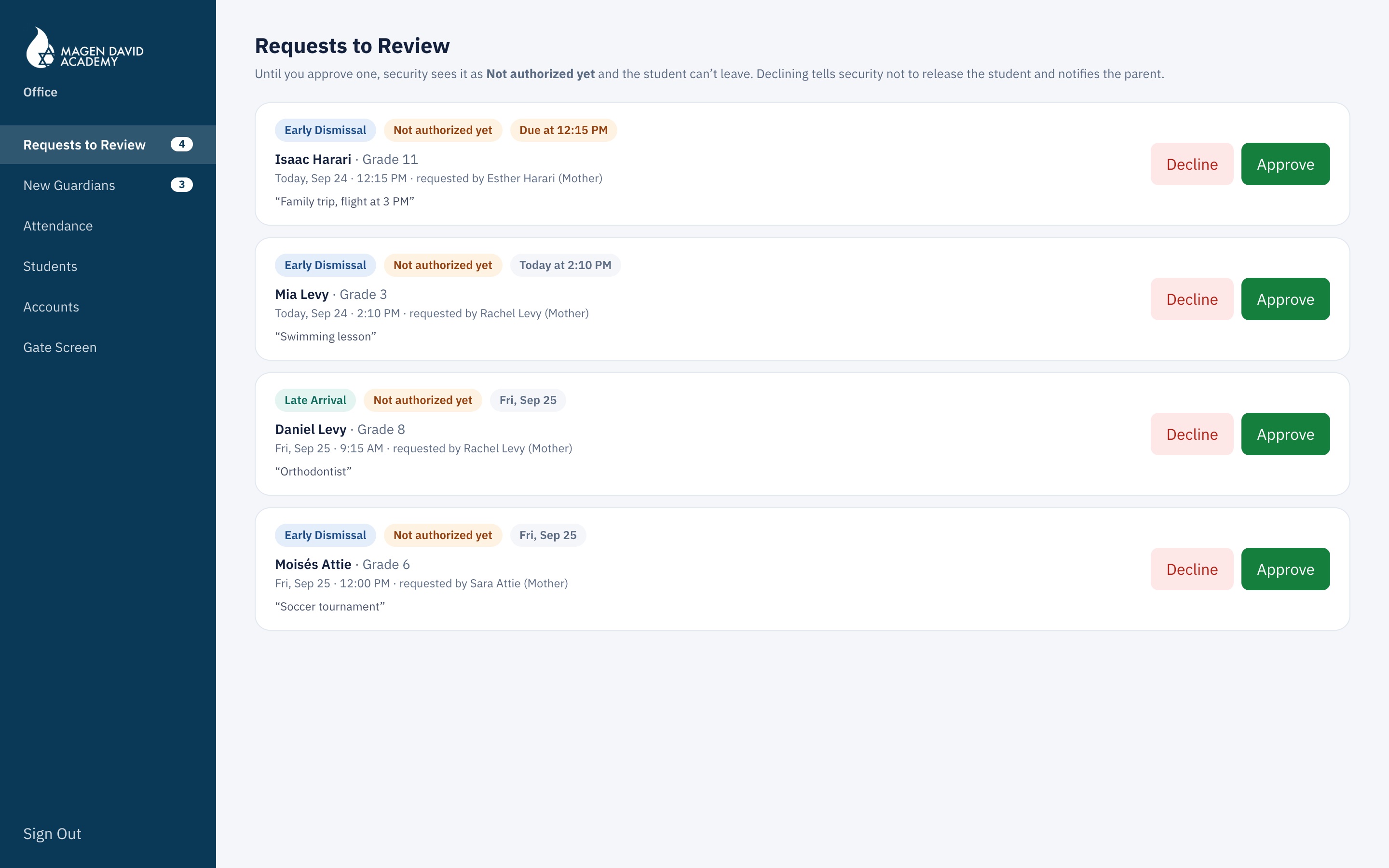
Requests to review
Requests to reviewMost urgent first, with the time it’s needed. Approve, or decline with a reason.
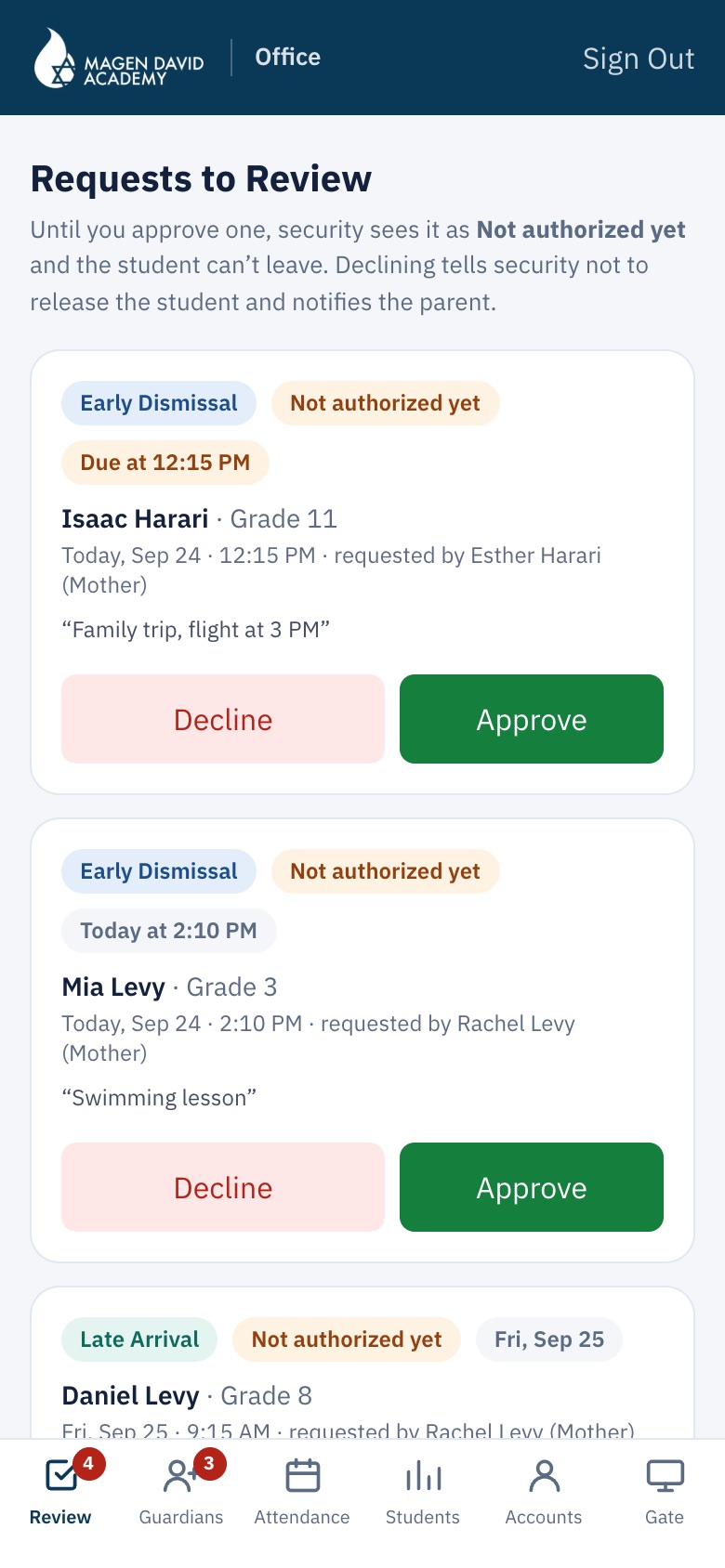
Requests to review on a phone
On a phone tooThe same buttons, from anywhere.
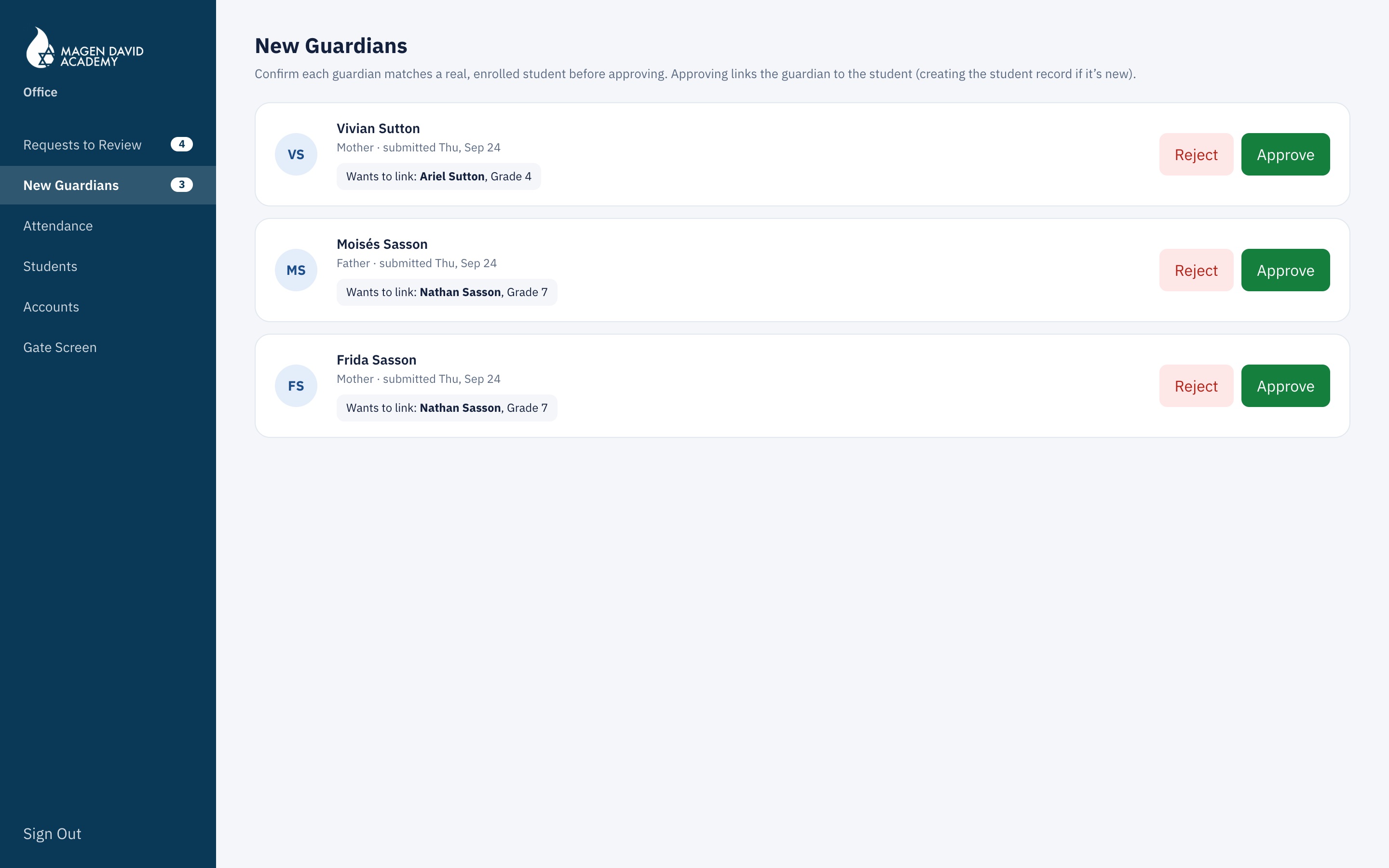
New guardians
New guardians waiting for approval
New guardiansNobody is linked to a student until the office approves it.
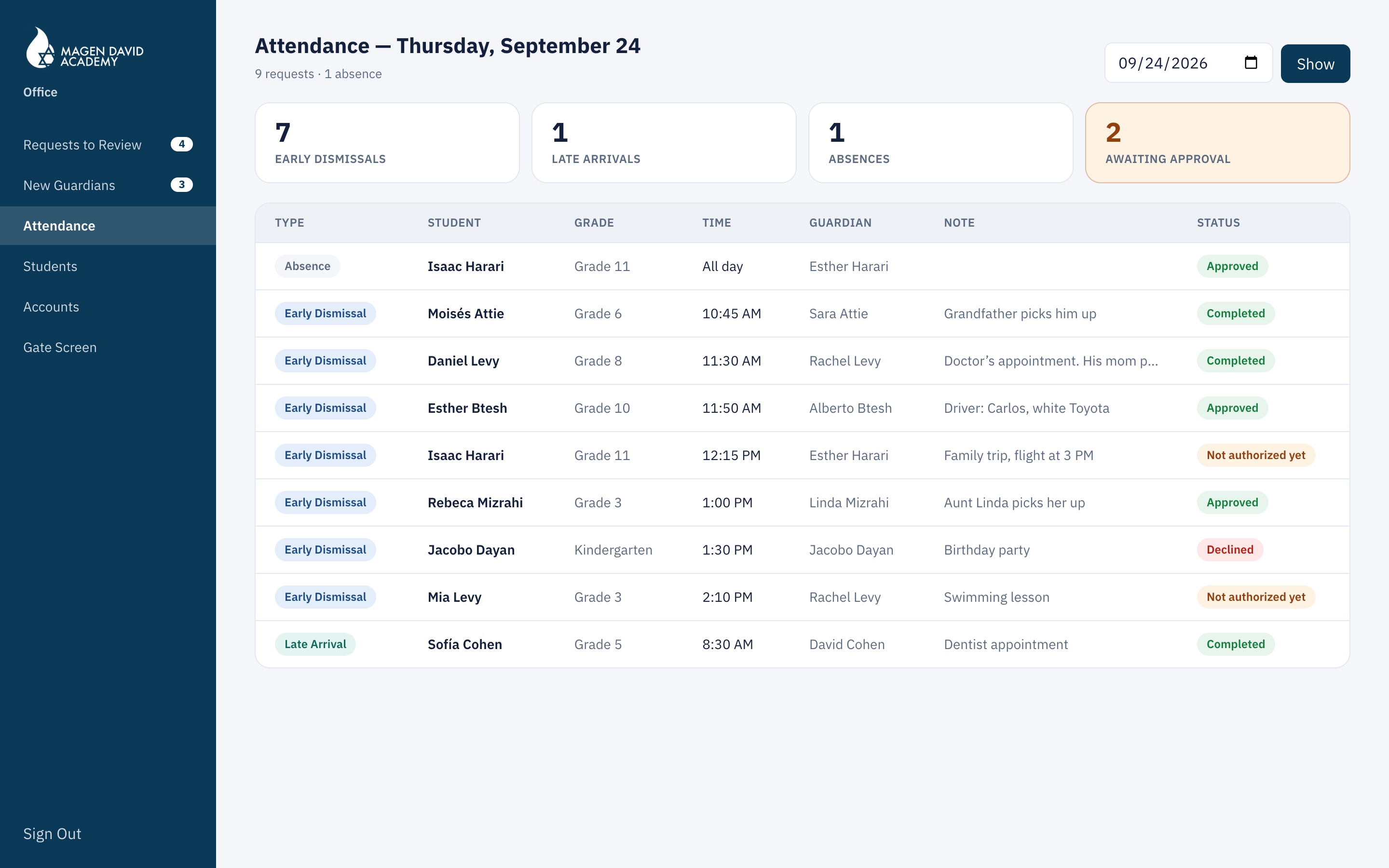
Attendance
The day’s attendance
The day’s attendanceEarly dismissals, late arrivals and absences for any date.
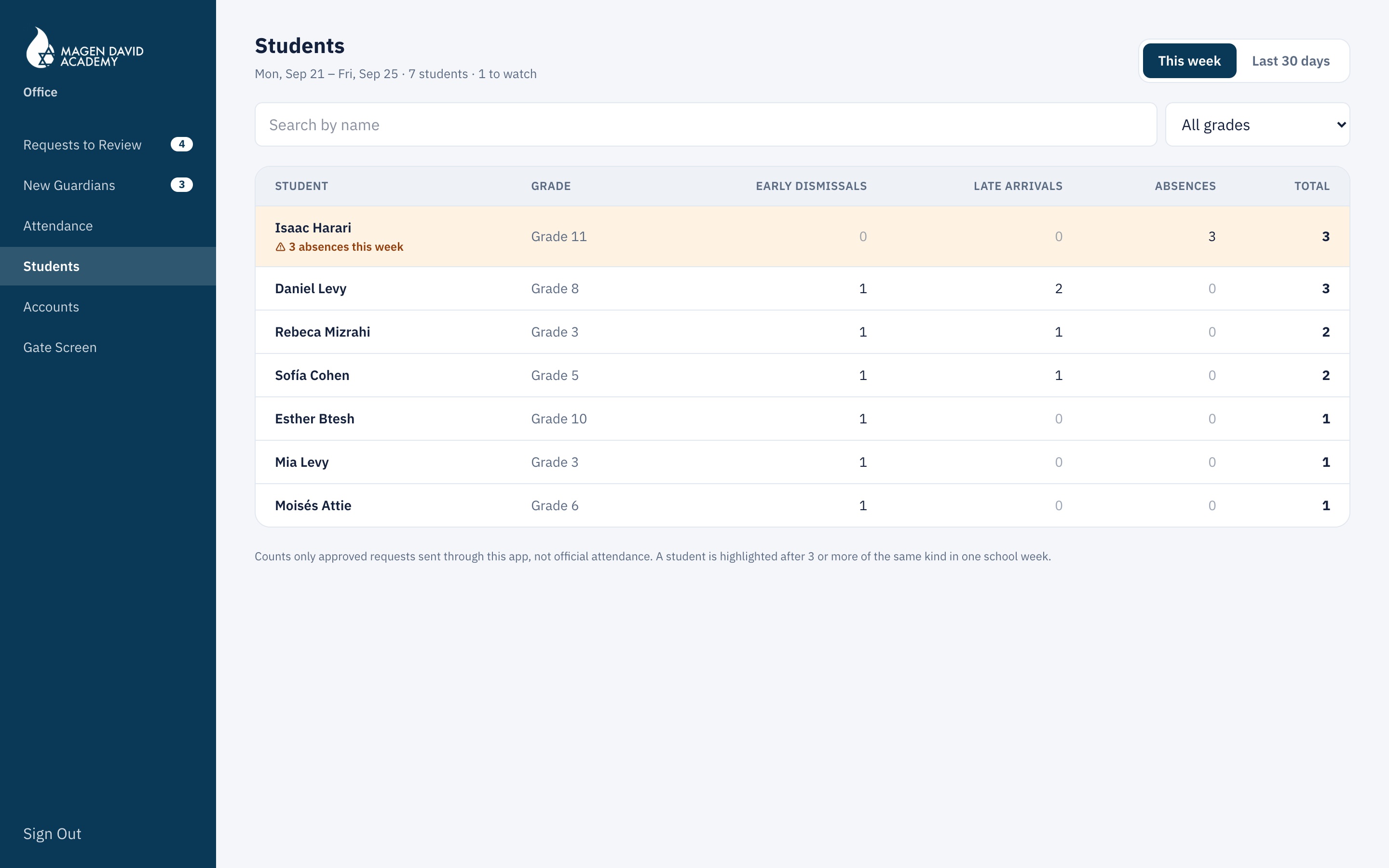
Students
History per student, with alerts
StudentsHow often each one left early, arrived late or was absent. In yellow: 3 or more in one week.
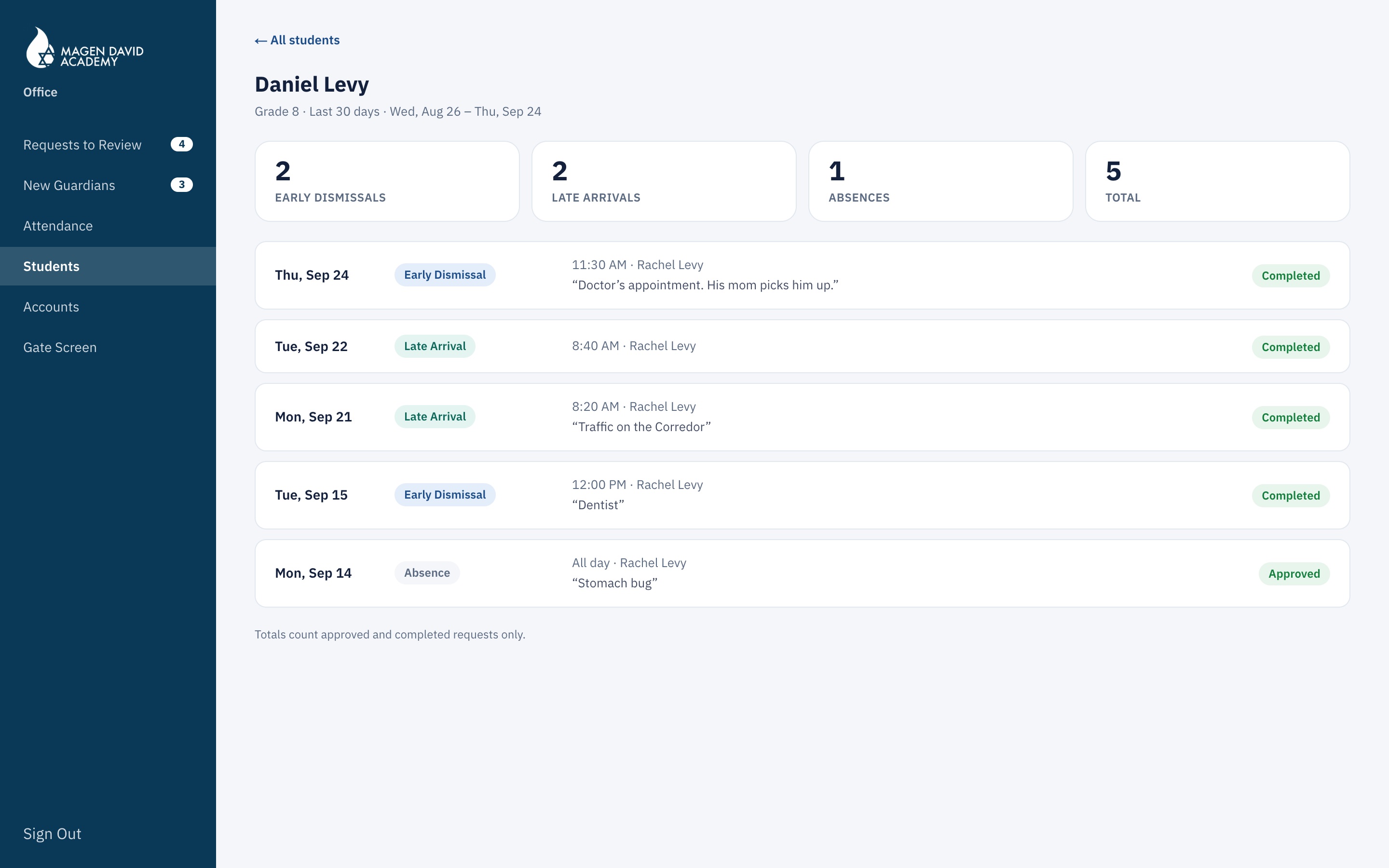
Students · detail
One student’s detail
Tap a studentEvery request with its date, time, who asked and the parent’s note.
Accounts
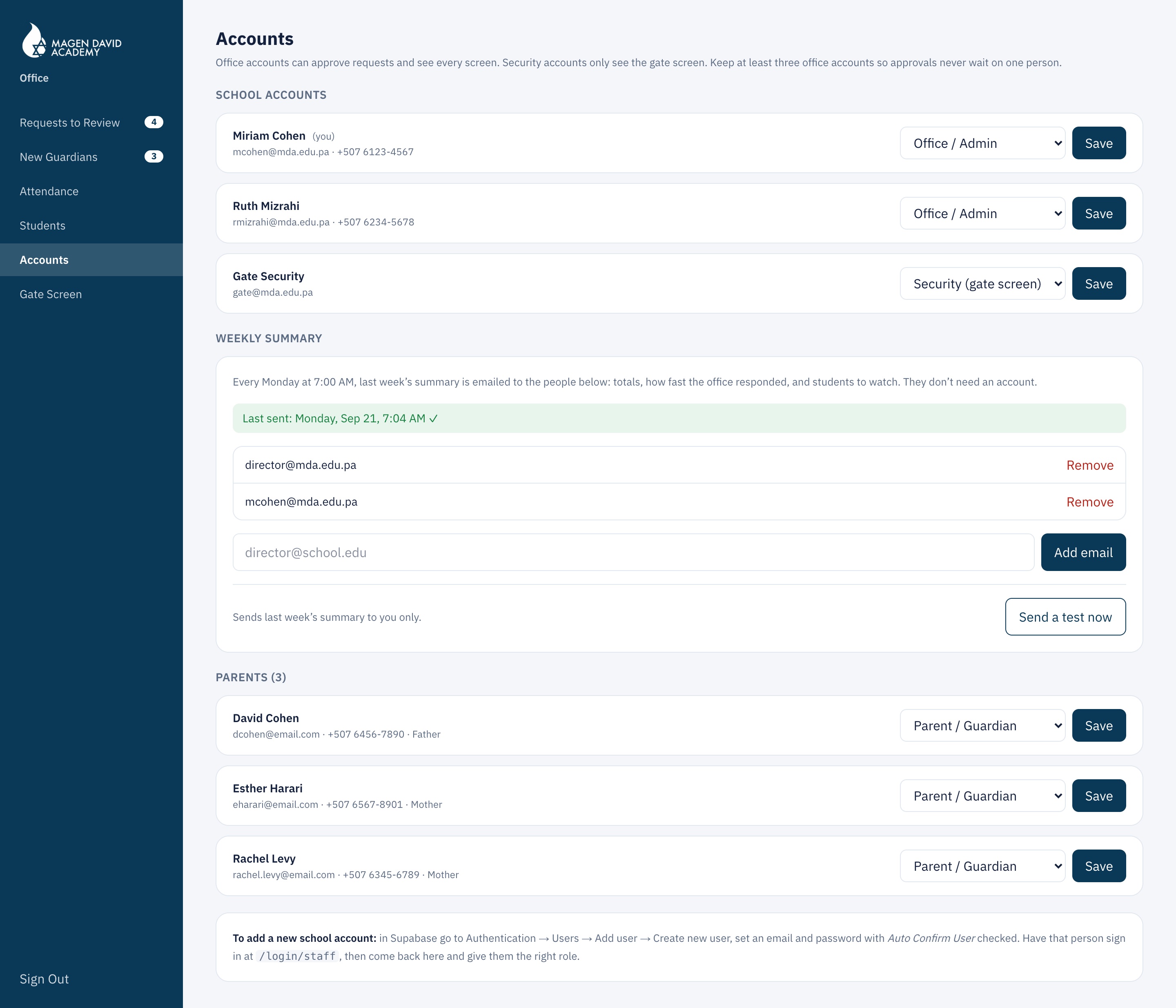
Accounts and the weekly summary list
Accounts and weekly summaryWho is office, security or parent, and who gets the Monday email.
New school year
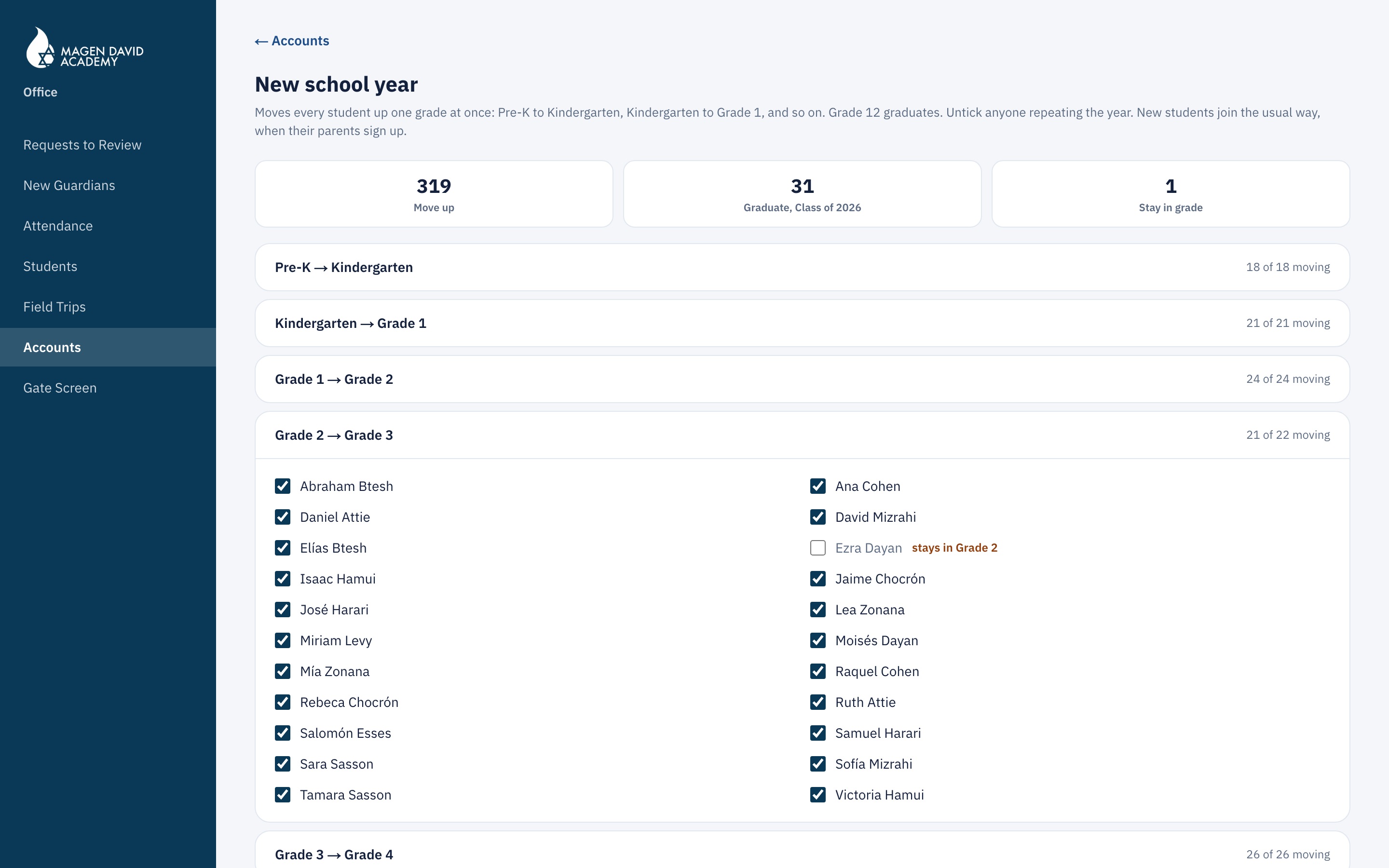
Preview of moving every student up a grade, with one student repeating the year unticked
New school yearOne button moves everyone up a grade and graduates the seniors. The office unticks anyone repeating the year and types PROMOTE to confirm.
New school year
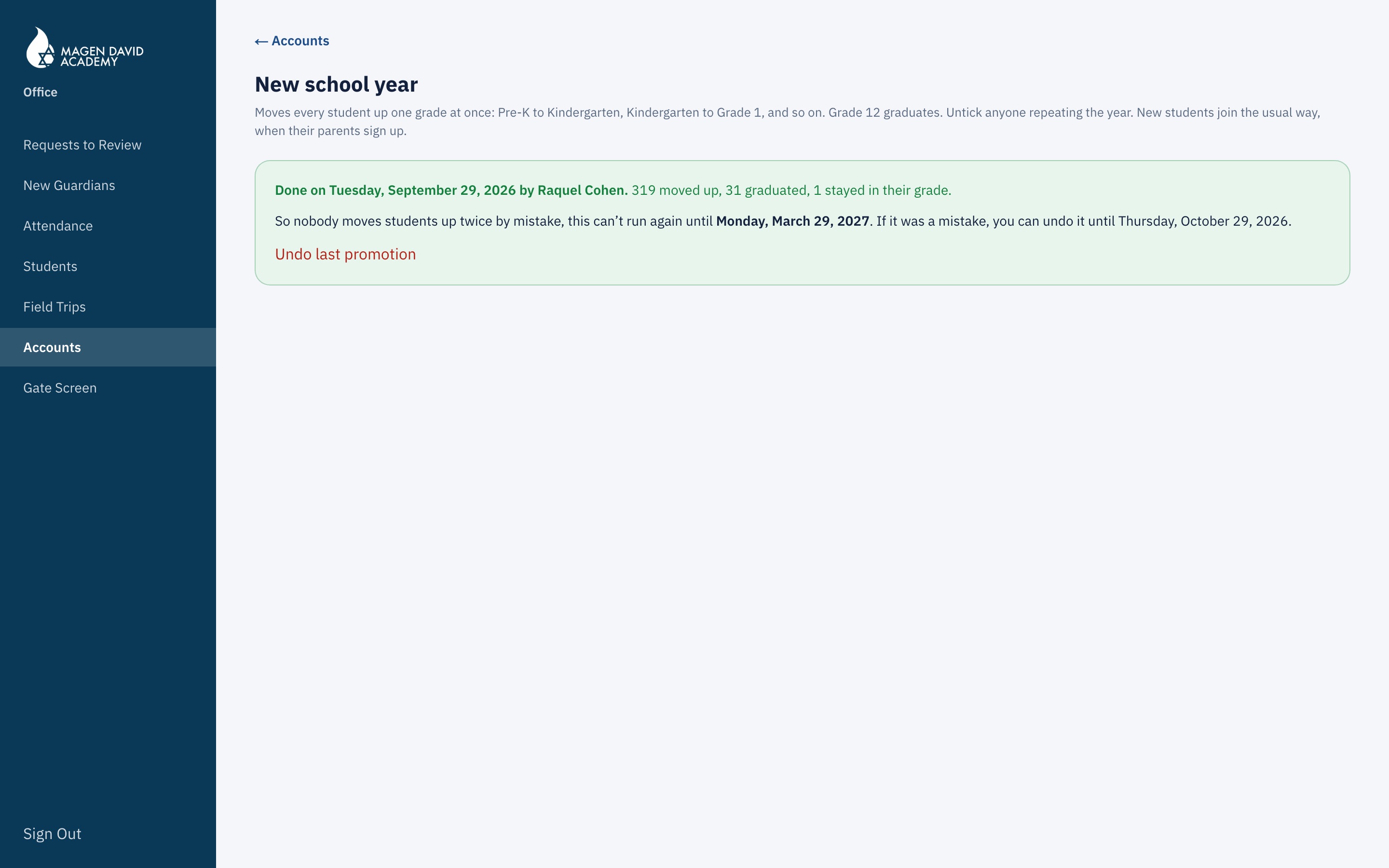
Notice of who moved students up and until when it is locked
It can’t happen twiceIt records who did it and when, can be undone for 30 days, and nobody can run it again for 6 months.
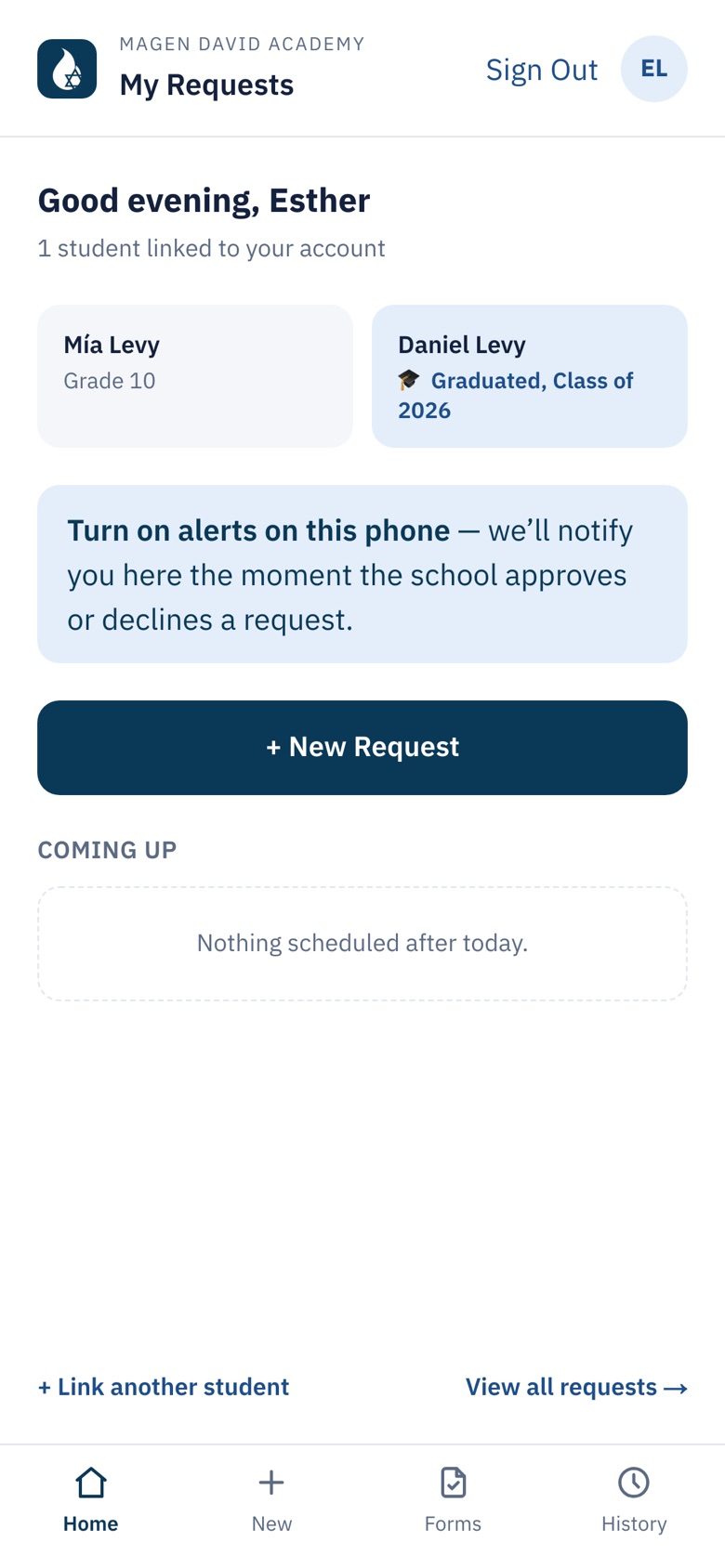
Parent home with a graduated child
Parents see itThe graduate shows as Class of 2026. Their history stays on file.
03 — Security

The gate sees it live

Green can leave, yellow not yet, red stays. The screen updates by itself.
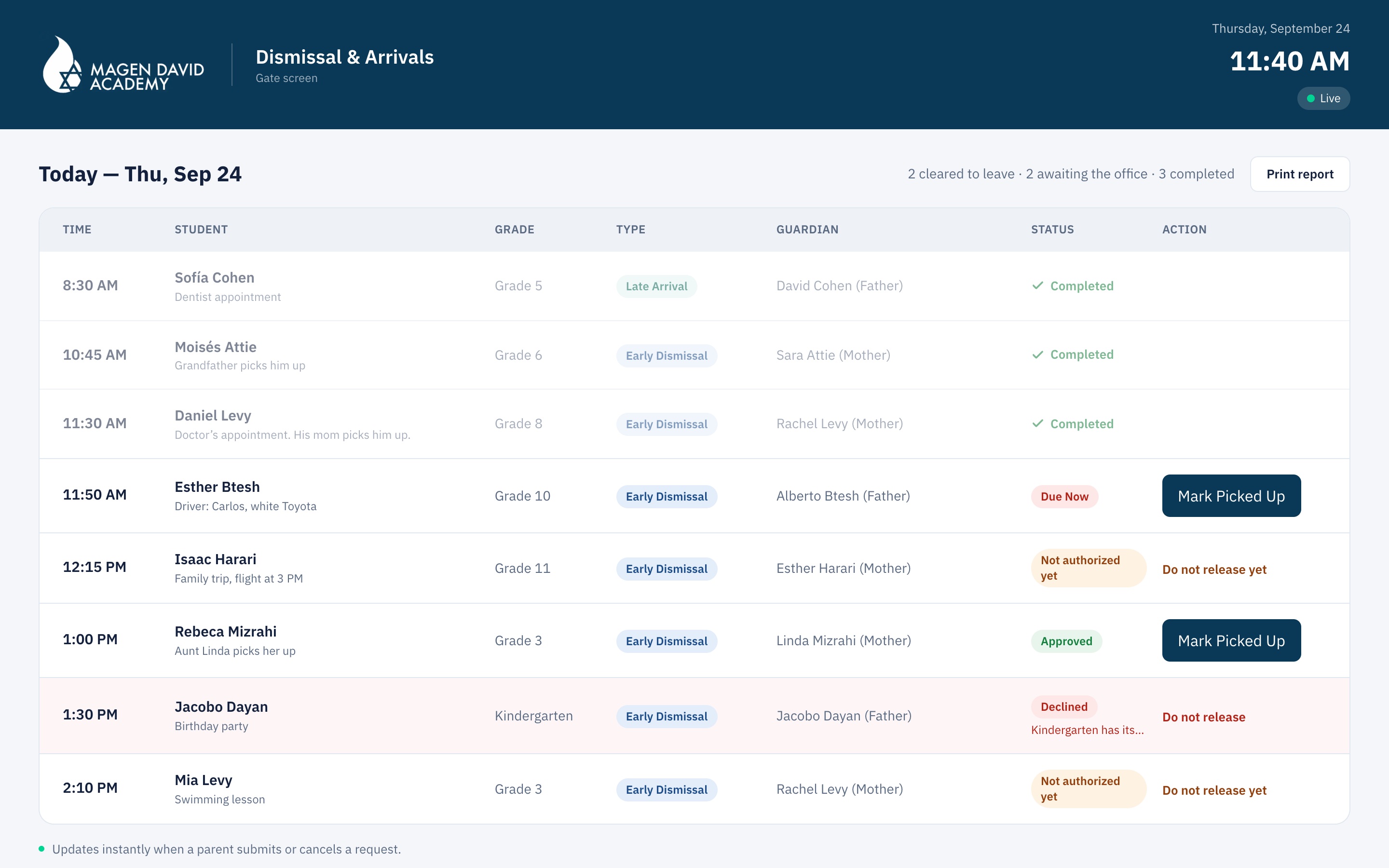
Gate screen
Security screen with today’s dismissals
Gate screenEvery dismissal of the day with its status, and the button to mark the student picked up.
Gate screen on a phone
On a phone tooOne card per student, with the color and the button in view.
Printable report
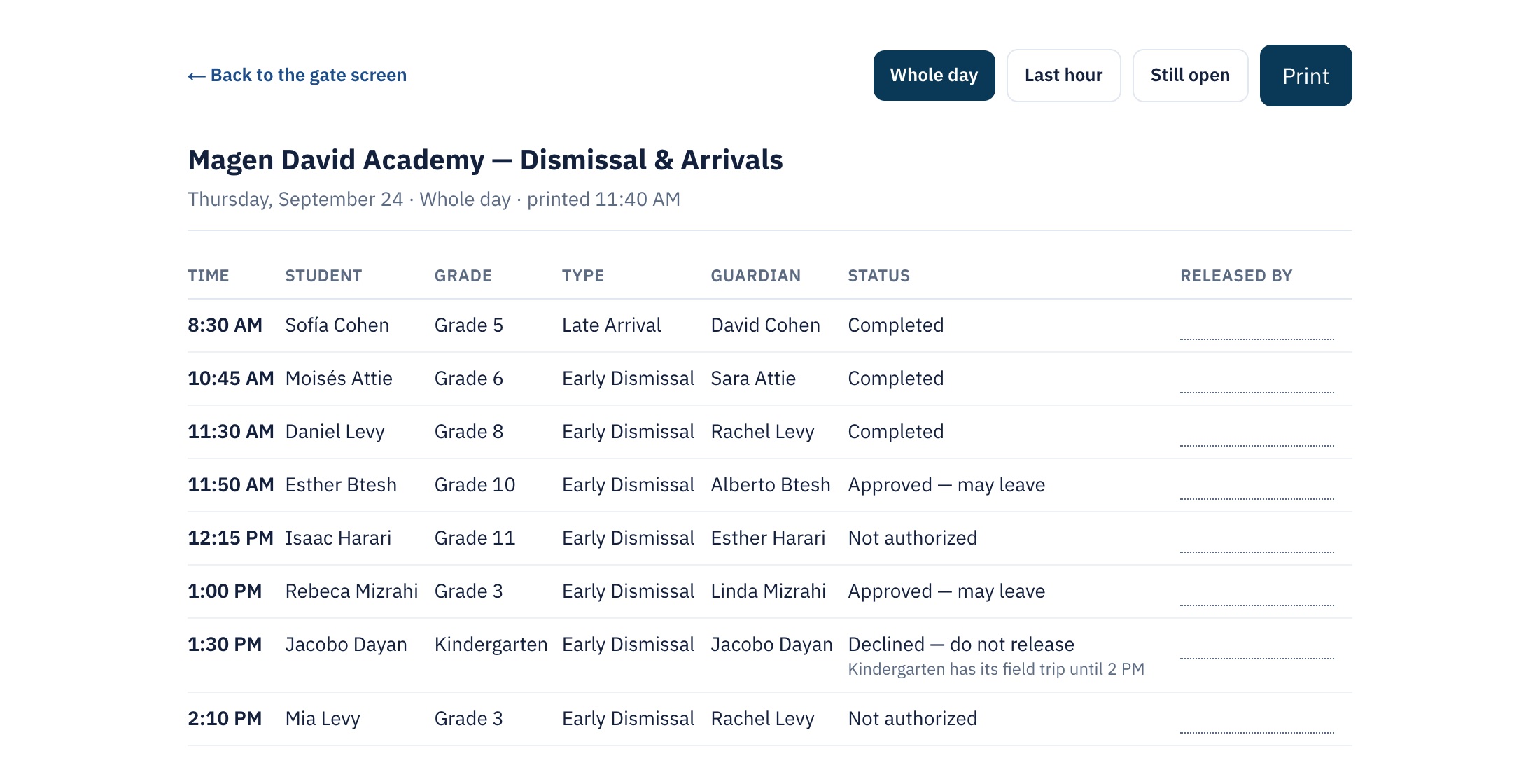
Printable gate report
Printable reportThe whole day, the last hour or what’s still open, with room to sign.
04 — Field trip permission

Goodbye to the slip lost in the backpack

The office sends the form to grades or students. Parents sign it on their phone in 30 seconds, and the office sees the billing list.
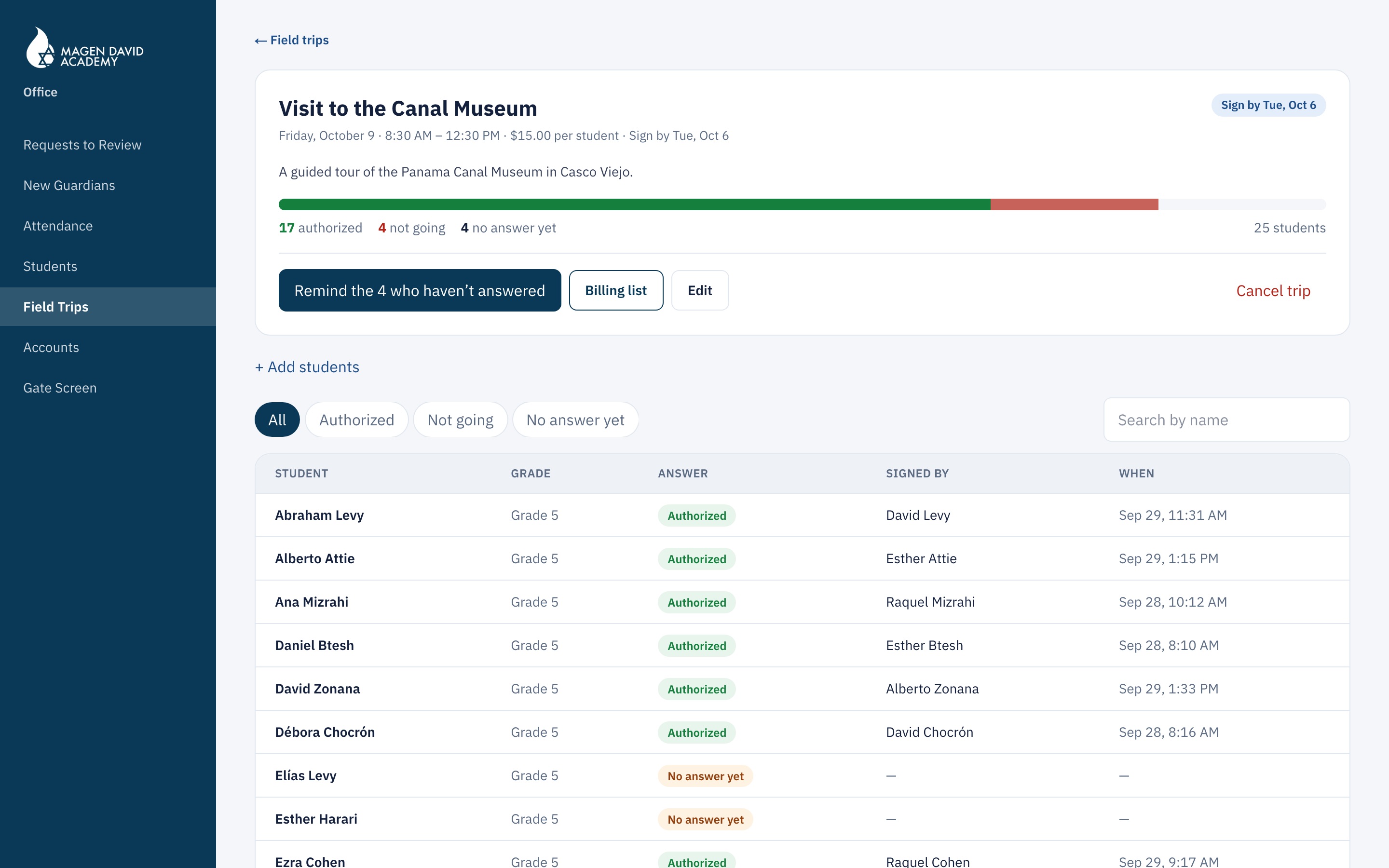
Field Trips · tracking
Tracking one field trip
Who’s going, who isn’t, who hasn’t answeredRemind only the ones who haven’t answered in one tap, and open the billing list.
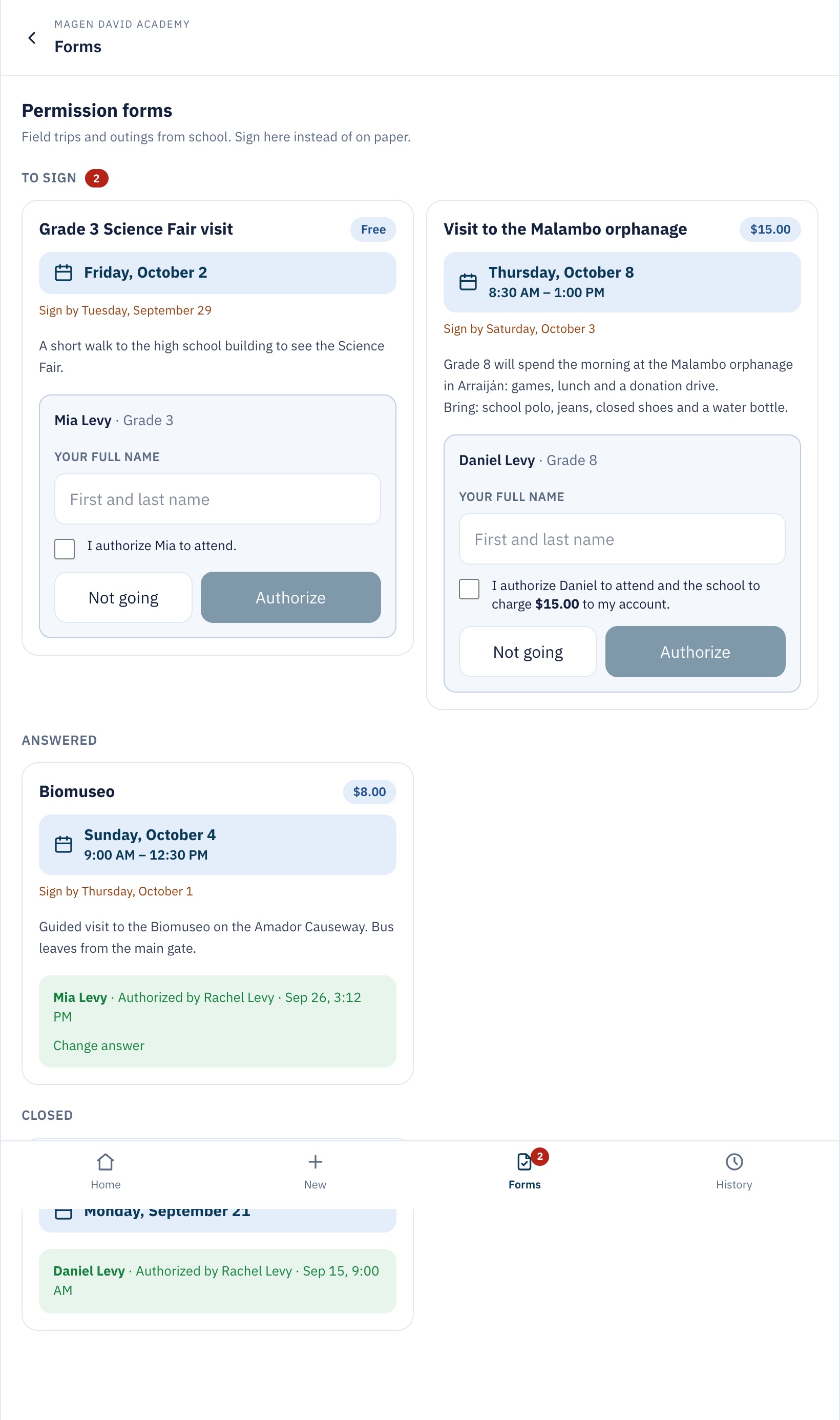
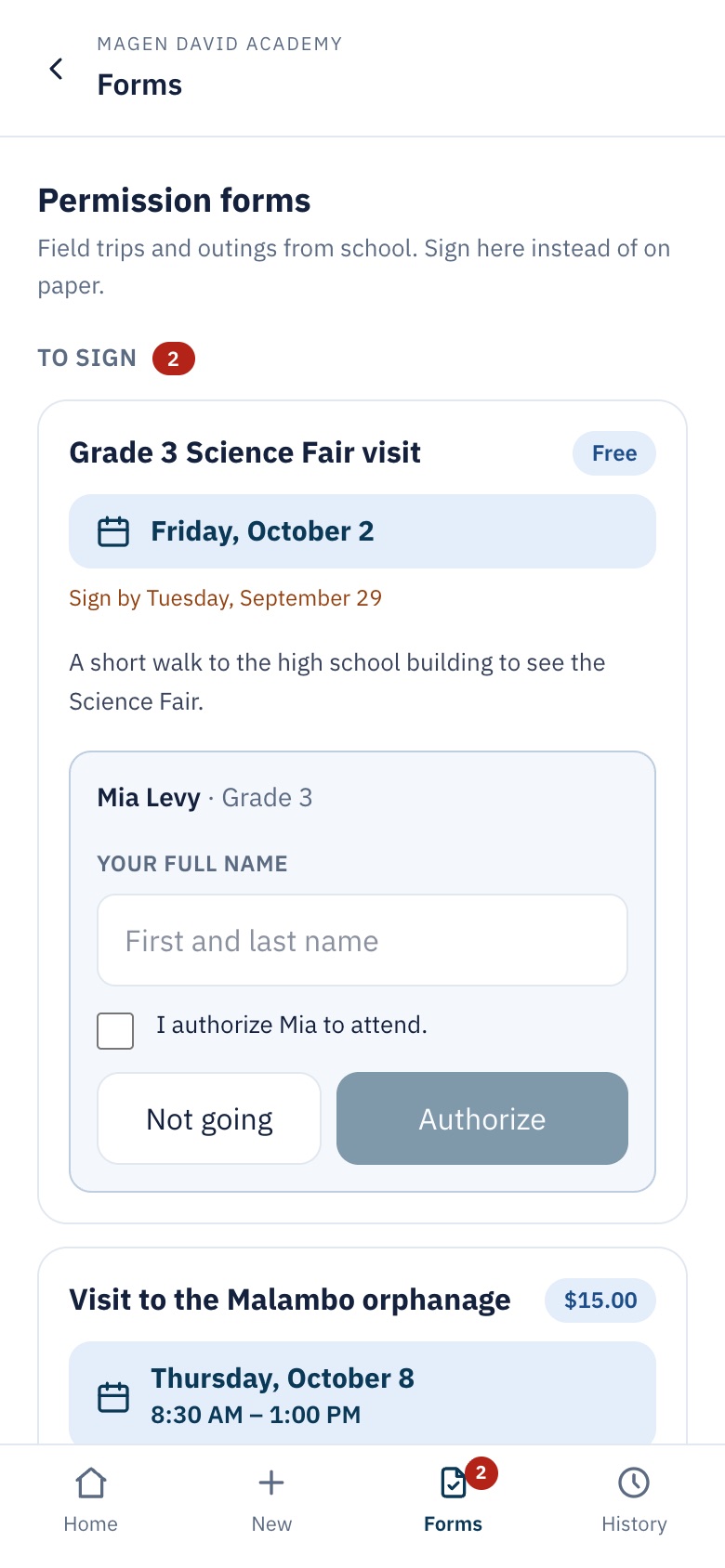
Permission forms on a parent’s phone
Parents sign on their phoneThey type their name and tap Authorize or Not going.
Field Trips
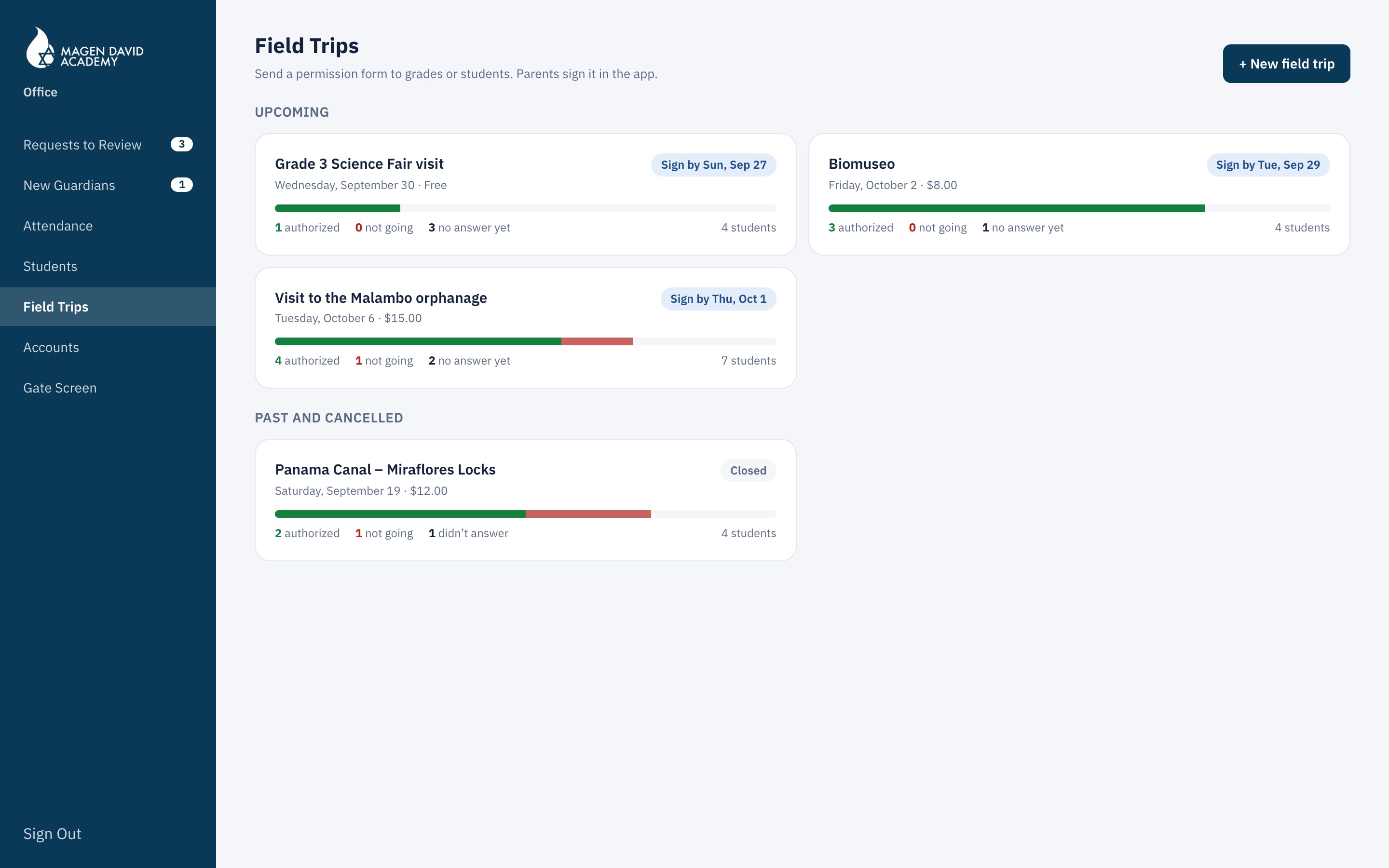
List of field trips
All field tripsEach with its progress: authorized, not going and no answer.
New field trip
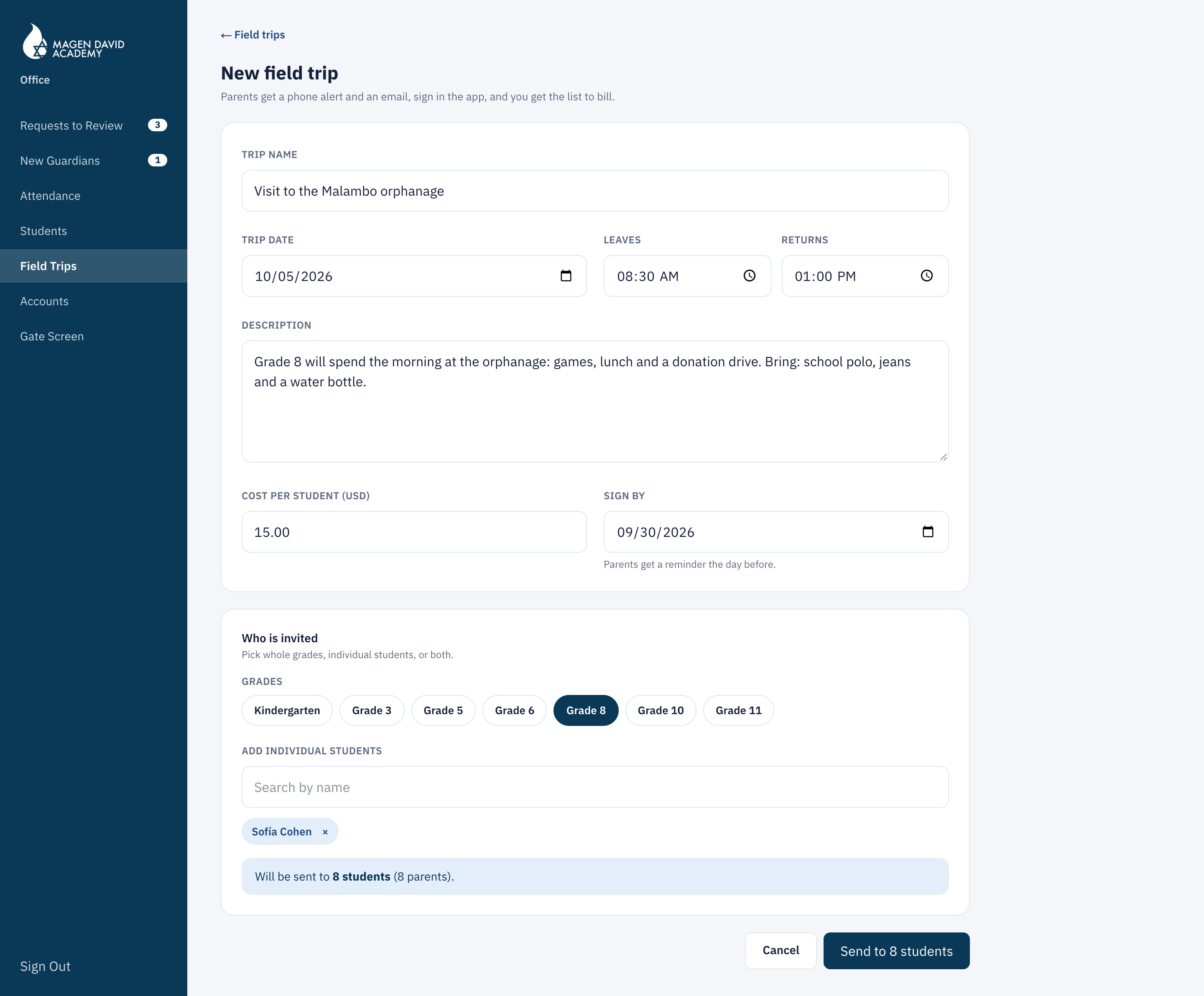
Create a field trip
Create a field tripDate, cost, deadline and which grades or students it goes to.
Billing list
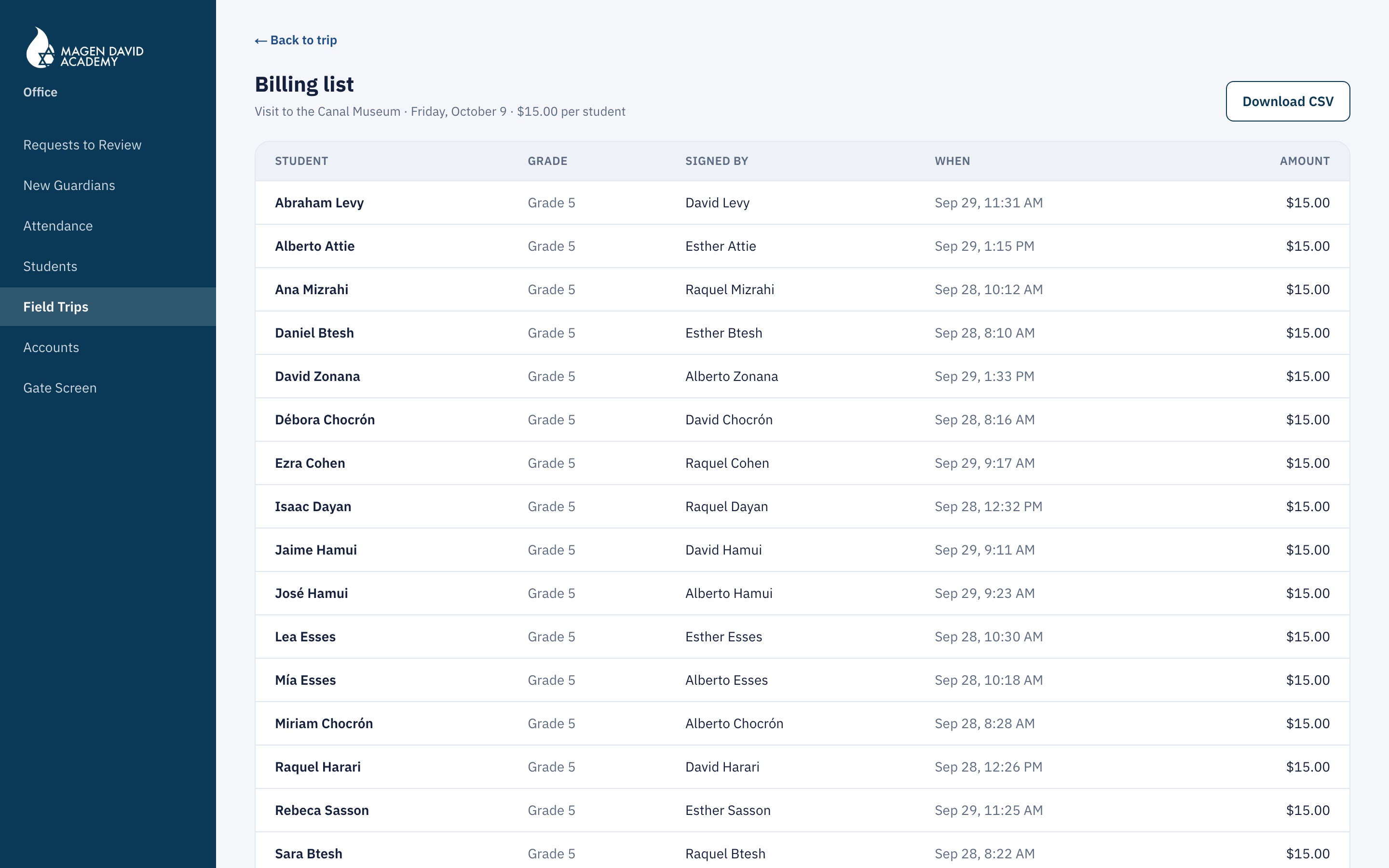
A field trip billing list with the total
Billing listShown on screen: who authorized, who signed, when, and the total. If the office wants it in Excel, one button downloads it.
Forms · iPad
Permission forms on an iPad
On iPad and computer tooThe forms fit into two columns.
05 — Leadership

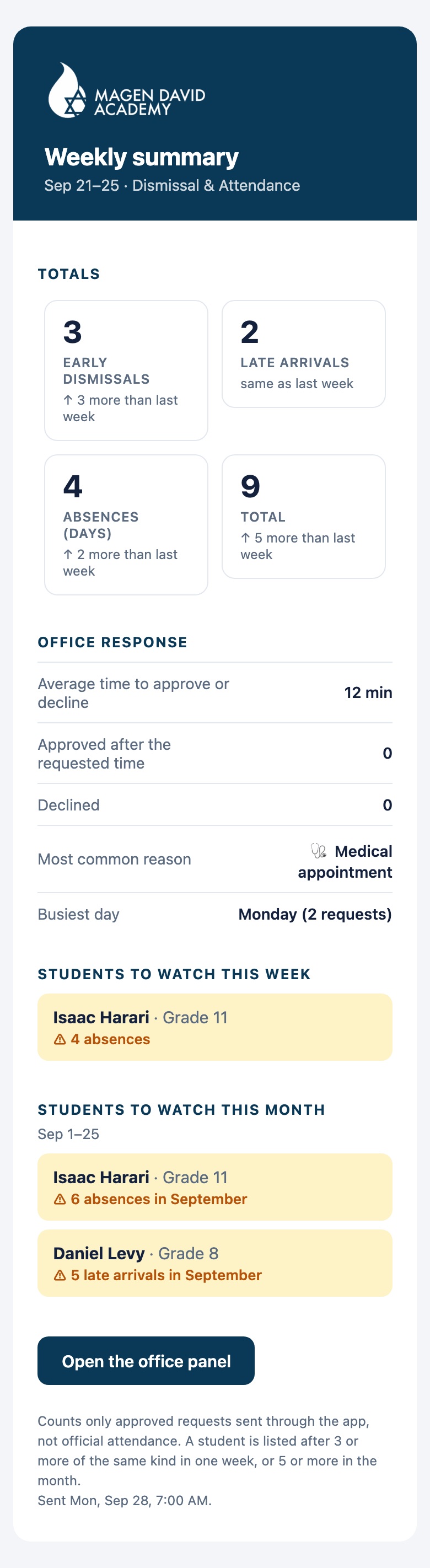
A summary every Monday at 7 AM

It arrives by itself in the inbox of the director and anyone the office chooses, without anyone putting it together.